'標準モジュール
Sub rngCollectionTest()
  Dim table As clsCol
  'インスタンス作成⇒コンストラクタ起動
  Set table = New clsCol

  'この下の部分にサブルーチンを呼び出すコードを入れる
 'For Eachでコレクション内の要素毎にMsgBoxを表示する処理へ
  Call MsgBox_Element(table.mycol)

End Sub
コレクション化され集合となっている「要素=インスタンス」を取り出すにはループ処理が有効です。
For Each ~ Nextステートメントを使う【推奨】
ループ処理には、次の例のように For Each ~ Nextステートメントを使うのが良いでしょう。
'For Eachでコレクション内の要素毎にMsgBoxを表示する
Sub MsgBox_Element(ByVal Col As Collection)
  Dim c As Variant
  Dim i As Long
  For Each c In Col
    i = i + 1
    With c
      MsgBox "OWNER:" & .Name & "(" & .Age & "歳)" _
        & vbCrLf & "ペット名:" & .Pet.Name & _
        "(" & .Pet.Age & "歳)" & .Pet.Types & _
        "/" & .Pet.Gender, , _
        "Index=" & i & " , Key=" & .ID
    End With
  Next
End Sub
ただし、要素数が多い場合などは処理が増えるにしたがって処理速度がだんだん遅くなるので注意しましょう。これは、コレクションの特徴がチェーンのように次々につながるメモリ構造になっている影響です。全要素に対する処理には、高速な前段の For Each を使って処理しましょう。
ループ処理部分のコード例は次のとおりです。
  '要素数をカウントしてMsgBoxを表示
  Dim i As Long
  For i = 1 To table.mycol.Count  'カウントした要素数をループ
    With table.mycol(i)
      MsgBox "OWNER:" & .Name & "(" & .Age & "歳)" _
        & vbCrLf & "ペット名:" & .Pet.Name & _
        "(" & .Pet.Age & "歳)" & .Pet.Types & _
        "/" & .Pet.Gender, , _
        "Index=" & i & " , Key=" & .ID
    End With
  Next
個別の要素を取り出す方法3例
個別に特定の要素だけ取り出す方法についても考えてみましょう。
MsgBox やイミディエイトウィンドウに出力するのではなく、セルに書き出す方法で検討します。
InputBoxで指定する
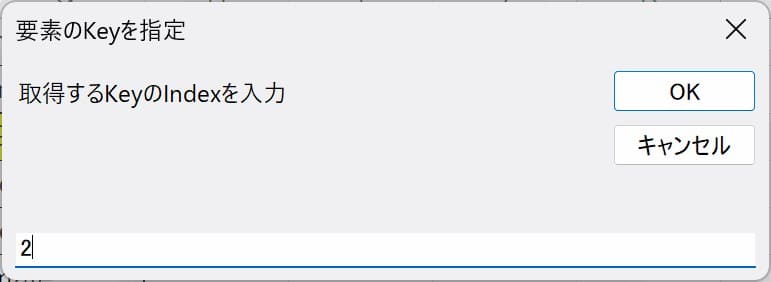
1つ目は、VBAの InputBox に取得したい要素の Key を入力させる方法です。
'KeyをInputBoxで指定し各プロパティをセルに書き込む
Sub GetKeyByInputBox(ByVal Col As Collection)
  Dim Elem As Object
  Dim Key As Long 'String

redo:
  Key = InputBox("取得するKeyのIndexを入力", "要素のKeyを指定")
  If Col.Count >= Key And Key > 0 Then
    Set Elem = Col.Item(Key)
    Cells(10, 1).Value = Elem.ID
    Cells(10, 2) = Elem.Name
    Cells(10, 3) = Elem.Age
    Cells(10, 4) = Elem.Pet.Name
    Cells(10, 5) = Elem.Pet.Age
    Cells(10, 6) = Elem.Pet.Types
    Cells(10, 7) = Elem.Pet.Gender
  Else
    MsgBox "存在しない Key が指定されました!": GoTo redo
  End If
End Sub
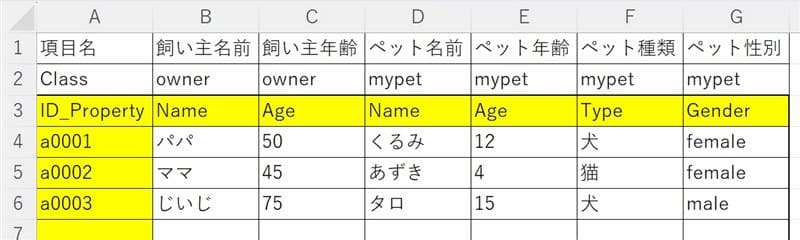
このコードでは、書き込み先セルの場所はあらかじめコード内で指定しています。
各プロパティ毎、セルを横方向に書き込む設定です。
Key は Index番号を入力する設定にしていますが、Key値を入力させることへも変更できます。
その場合は、4行目の変数の型指定を String に変更し、8行目の If 分岐の条件設定を変更する必要があります。
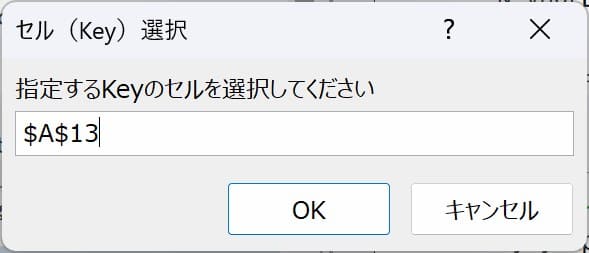
'Application.InputBoxで指定したKeyのセル横方向に書き込む
Sub GetKeyByAppInputBox(ByVal Col As Collection)
  Dim Elem As Object
  Dim rng As Range
  Dim Key As Variant
  Dim r As Long, c As Long, i As Long, x As Long

redo:
  On Error Resume Next
  Set rng = Application.InputBox( _
    Prompt:="指定するKeyのセルを選択してください", _
    Title:="セル(Key)選択", Type:=8)
  On Error GoTo 0
  If rng Is Nothing Then Exit Sub
  r = rng.Row     'セルの行番号
  c = rng.Column  'セルの列番号
  Key = rng.Value 'Key変数にセル値を代入
  x = Col.Count   '要素数カウント
  'Keyの存在確認をしてから処理する
  For i = 1 To x  'Keyが要素に存在するかチェック
    If Col.Item(i).ID = Key Then Exit For
  Next i
  If x + 1 >= i Then 'ループ内で抜けているかで分岐
    Set Elem = Col.Item(Key)
    Cells(r, c + 1) = Elem.Name
    Cells(r, c + 2) = Elem.Age
    Cells(r, c + 3) = Elem.Pet.Name
    Cells(r, c + 4) = Elem.Pet.Age
    Cells(r, c + 5) = Elem.Pet.Types
    Cells(r, c + 6) = Elem.Pet.Gender
  Else
    MsgBox "存在しない Key が指定されました!": GoTo redo
  End If
End Sub
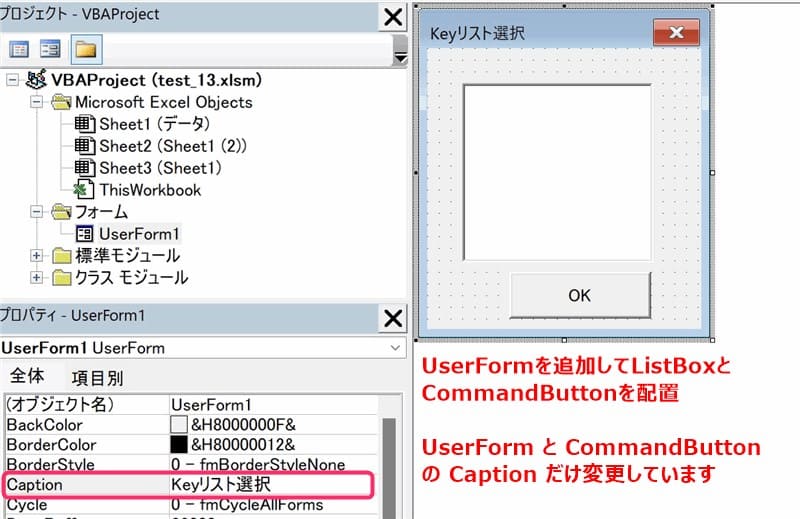
Private Sub CommandButton1_Click()
  With ListBox1
    If .ListIndex = -1 Then
      '未選択の場合は何もしない
    Else
      SelectedKey = .List(.ListIndex, 0)
    End If
  End With
  Unload Me 'UserFormを閉じる
End Sub
6行目で変数「SelectedKey」に選択したリストの Key値を渡しています。 (変数 SelectedKey は 標準モジュール側で Public で宣言します)
リストを選択していなくても「OK」ボタンを押すと終了する設定にしています。
ListBoxからKeyを選択するコード例
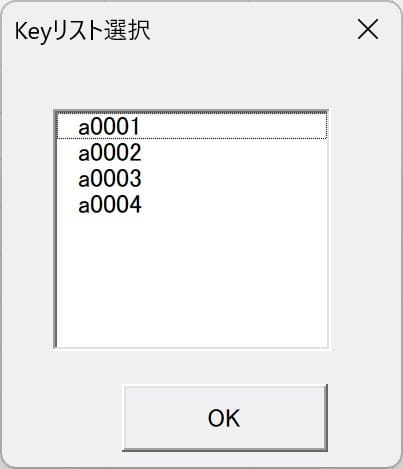
各要素のKeyをListBoxに表示させて、選択されたKeyに対して処理を行います。
'UserFormのリストからKeyを選択
Sub GetKeyByListBox(ByVal Col As Collection)
  Dim Elem As Object
  Dim Index As Long
  Dim ListBox As MSForms.ListBox
  Set ListBox = UserForm1.ListBox1
  'ListBoxにKeyリストを追加する
  For Index = 1 To Col.Count
    Set Elem = Col.Item(Index)
    ListBox.AddItem Elem.ID
  Next Index
  SelectedKey = ""  'Public変数初期化
  UserForm1.Show  'ユーザーフォームを表示
  If SelectedKey <> "" Then
    Set Elem = Col.Item(SelectedKey)
    Cells(10, 1).Value = Elem.ID
    Cells(10, 2) = Elem.Name
    Cells(10, 3) = Elem.Age
    Cells(10, 4) = Elem.Pet.Name
    Cells(10, 5) = Elem.Pet.Age
    Cells(10, 6) = Elem.Pet.Types
    Cells(10, 7) = Elem.Pet.Gender
  Else
    MsgBox "Key が選択されませんでした!"
  End If
End Sub

 くるみこ
くるみこ